Getting Started
& Help
From download to your first pitch call. Build your roster, get the call onto the wrist, and fix the two things that trip coaches up.
Step Zero
What you need
An iPhone or iPad
Running iOS 17 or later. This is the coach’s device — it’s where you call the pitch.
An Apple Watch
Series 4 or later on watchOS 10+, worn by your catcher. This is what receives the call.
No field WiFi
The call goes phone-to-watch directly. Cloud backup catches up on its own when you’re back on a connection.
Check your sanctioning body
One-way electronic pitch calling is permitted by most major bodies, but the rules on smartwatches specifically vary, and tournament directors often have final say. We keep a body-by-body breakdown on the Rules page. Confirm with your league before your first official game.
Part One
Set up your team
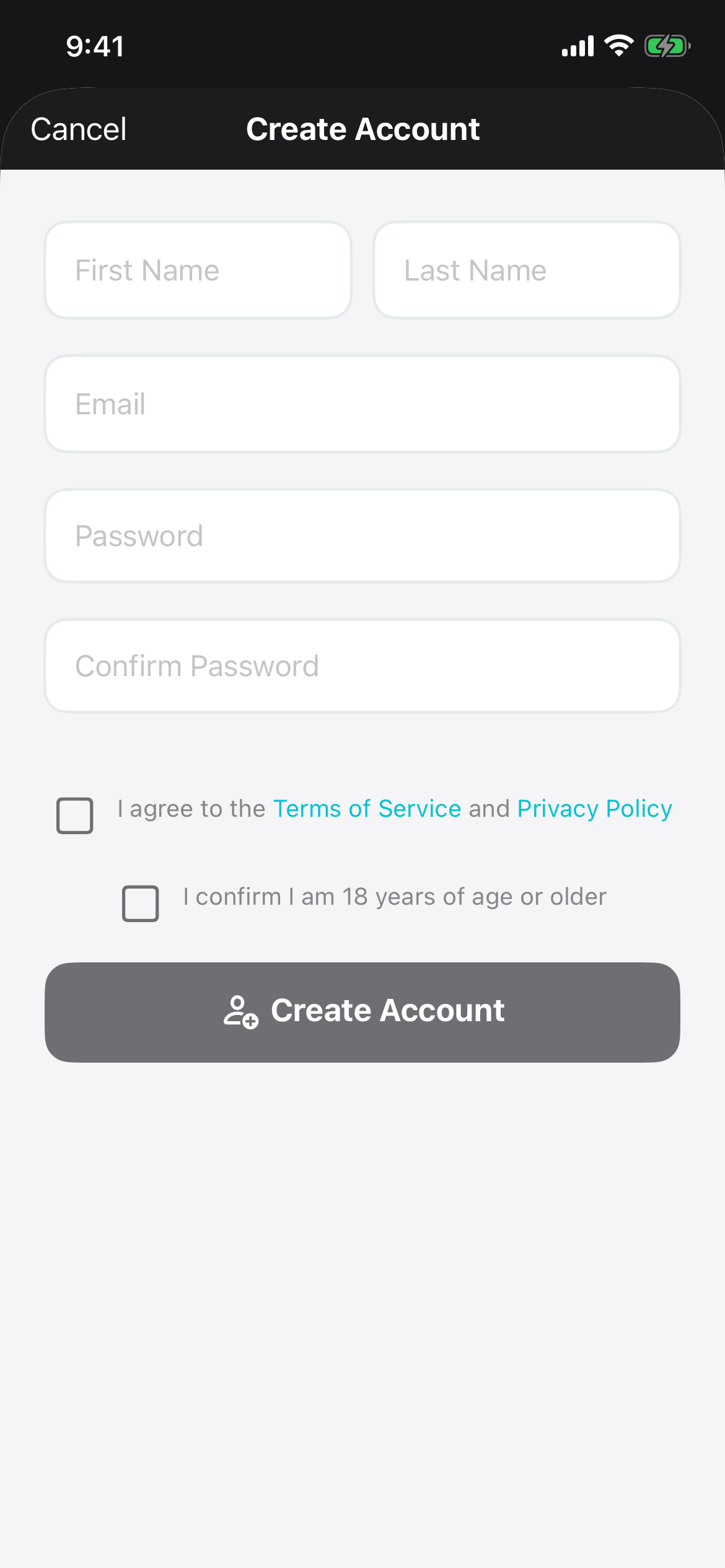
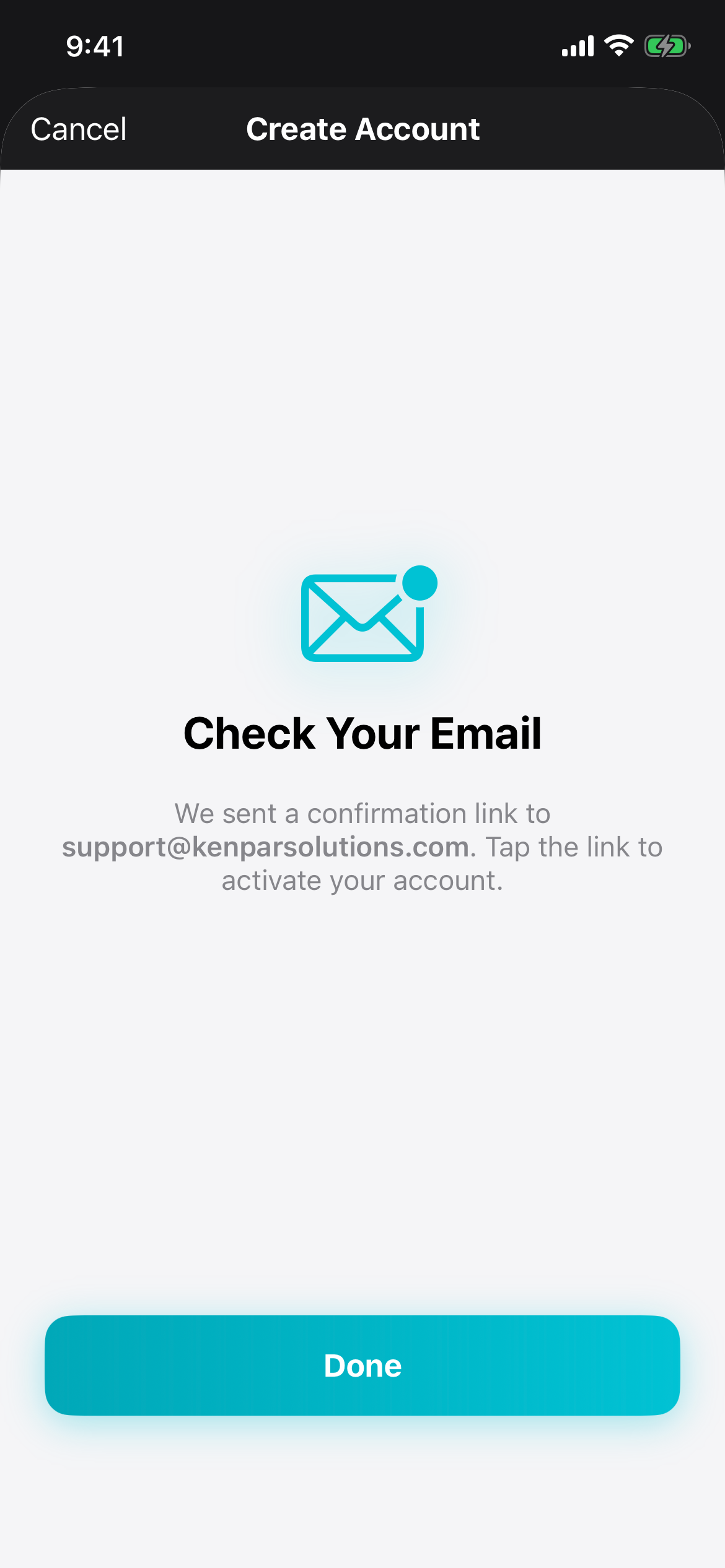
Create your account
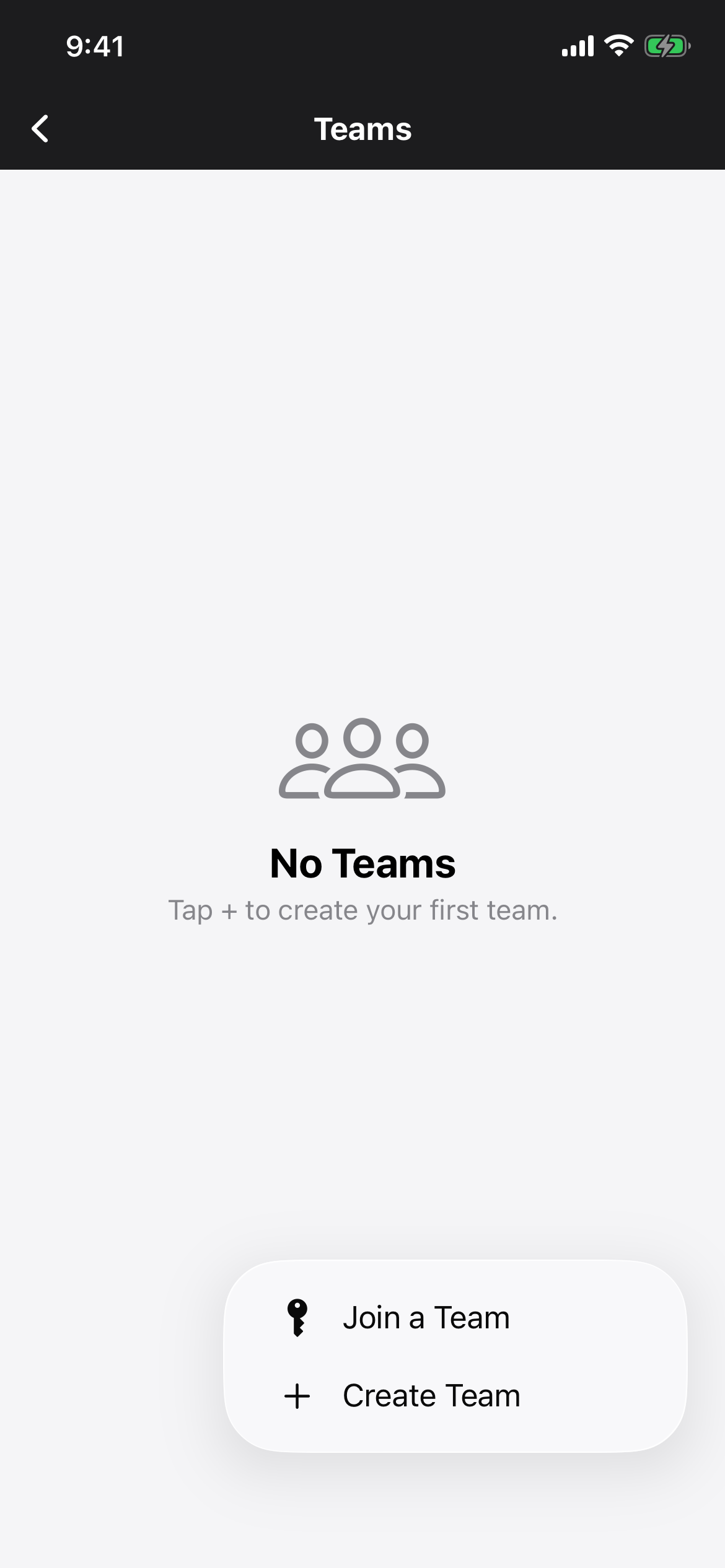
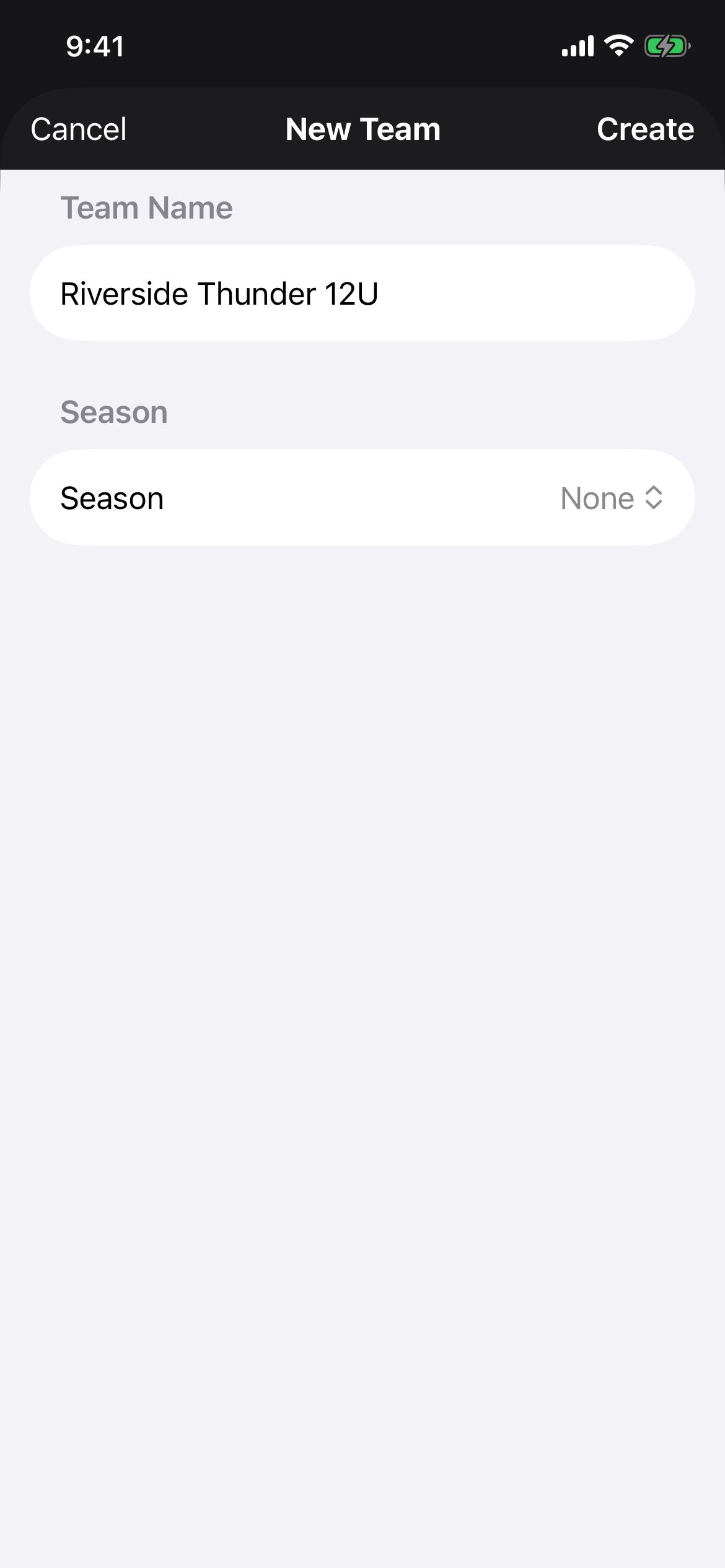
Create a team — or join one
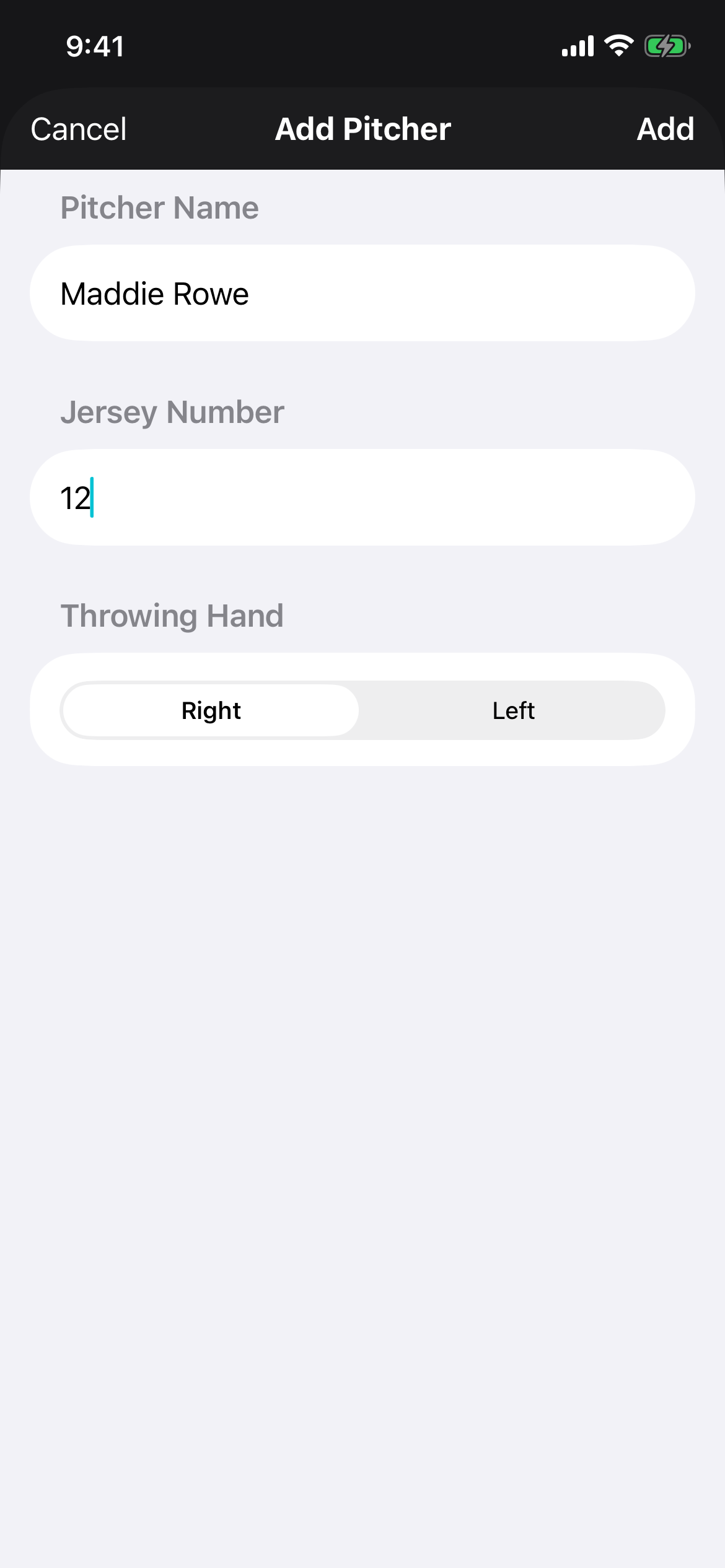
Add your pitchers
Add her pitches
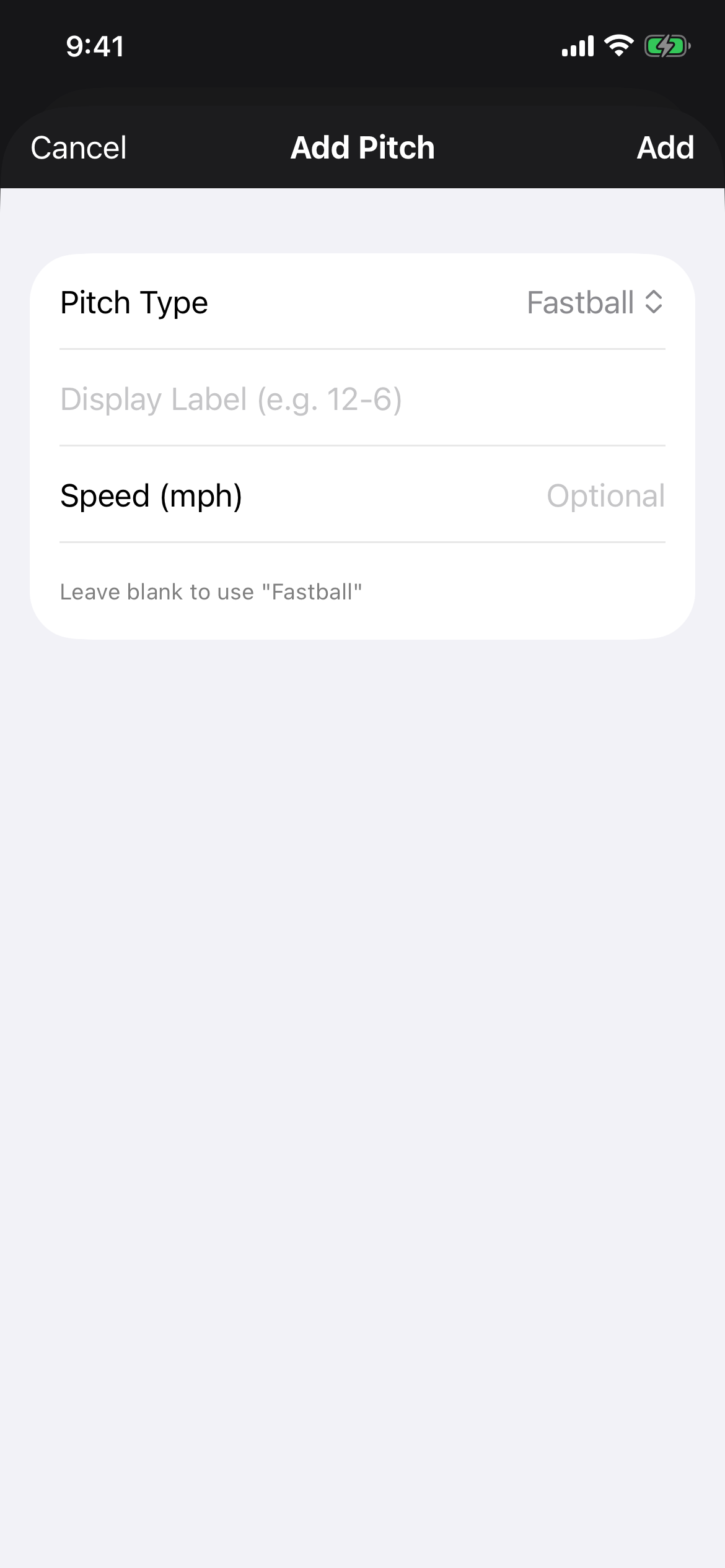
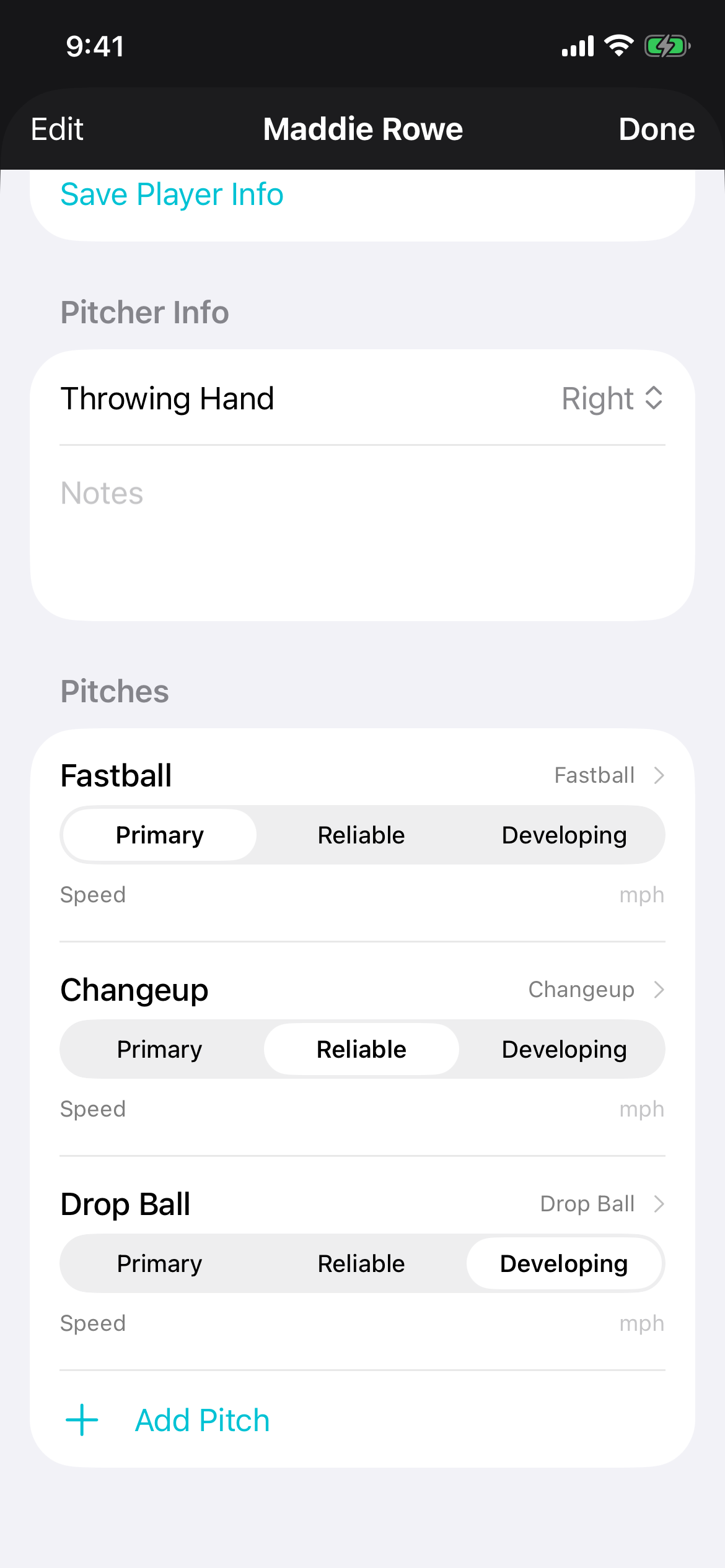
Tap the pitcher you just added, then Add Pitch. Choose the pitch type, and optionally a display label (what shows on the watch — handy if you call a drop curve “12-6”) and a speed. Each pitch you add lands in the list with a Primary / Reliable / Developing control — set that per pitch. New pitches start at Reliable.
Be honest about comfort. It’s the single biggest input into what PitchKallr suggests — a Developing rise ball won’t get recommended in a 3-2 count. There’s a full breakdown in the decision guide.
Add opponents (optional)
Part Two
Call your first game
Before the first pitch
Open Game Setup
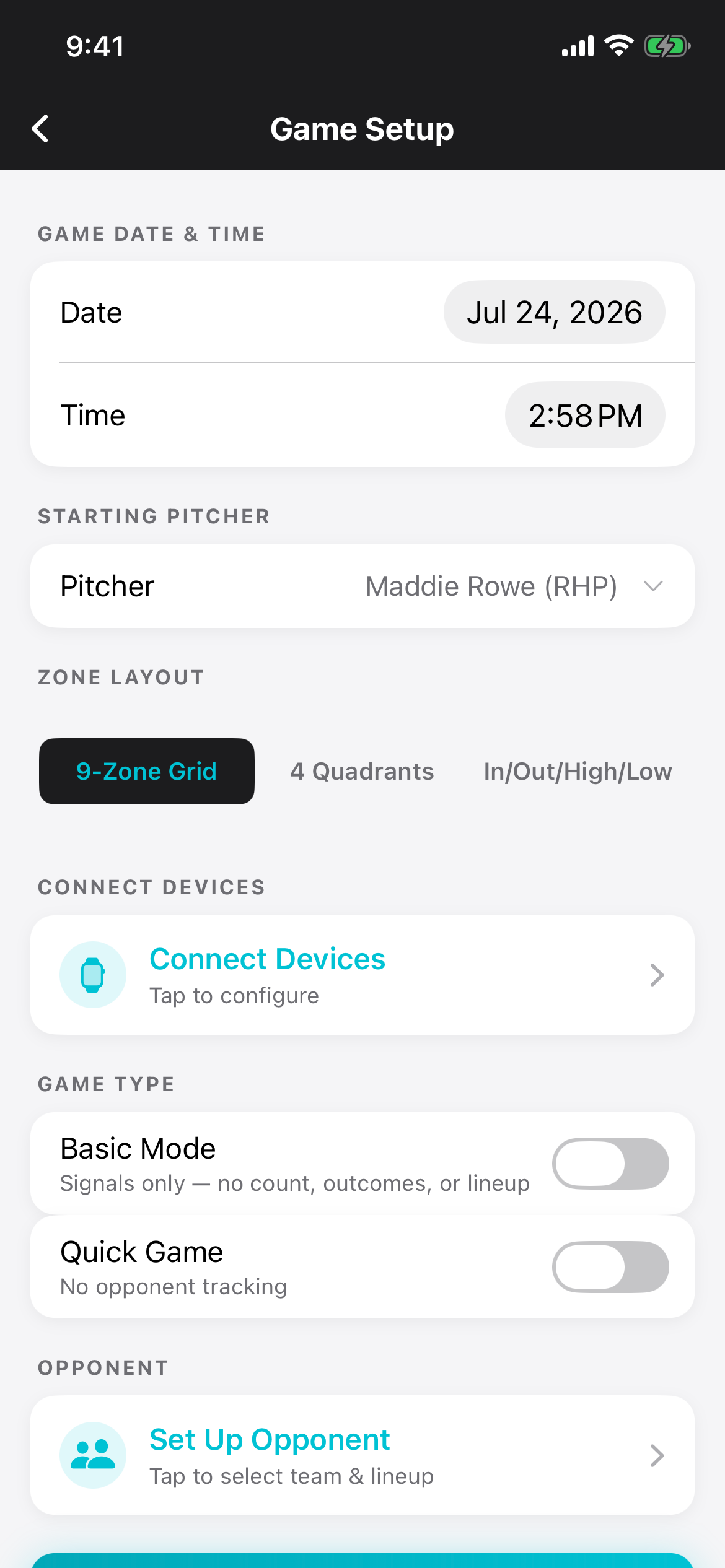
Pick a zone layout
Connect your devices
Choose your game type
Basic Mode — “Signals only — no count, outcomes, or lineup.” Just you and the pitch call. This is the one to use for your first game or two.
Quick Game — “No opponent tracking.” You still get the count and outcomes, you just skip naming the other team’s hitters.
Set up the opponent
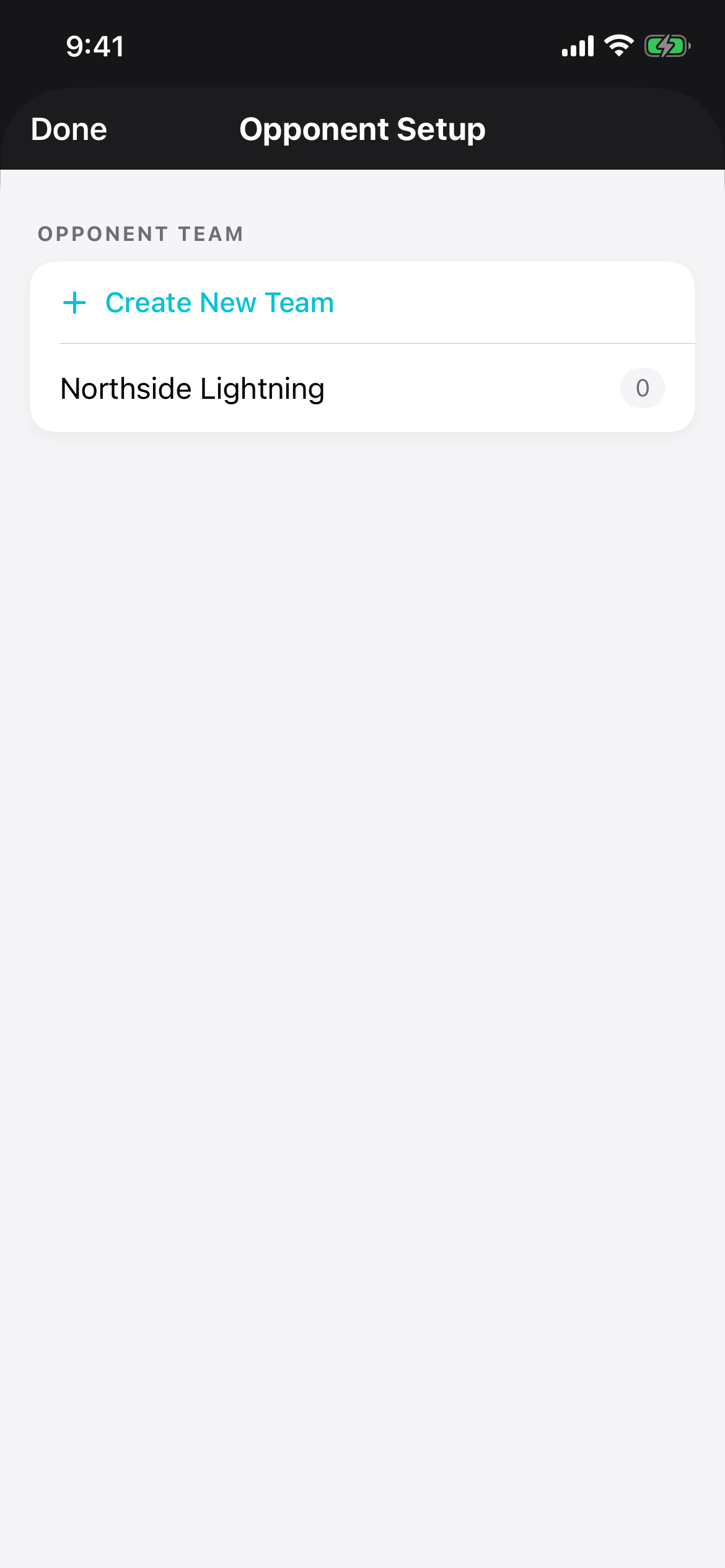
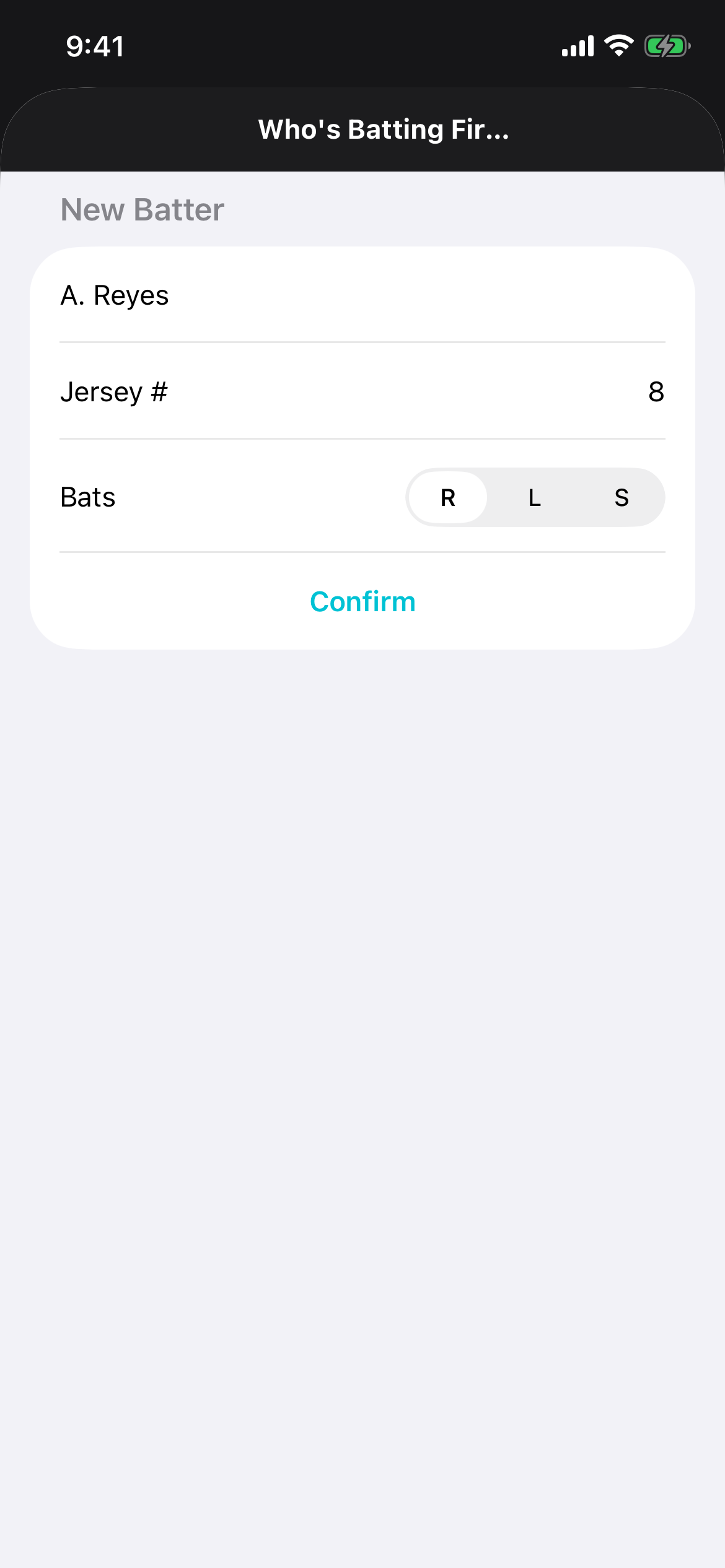
Start Game
Calling a pitch
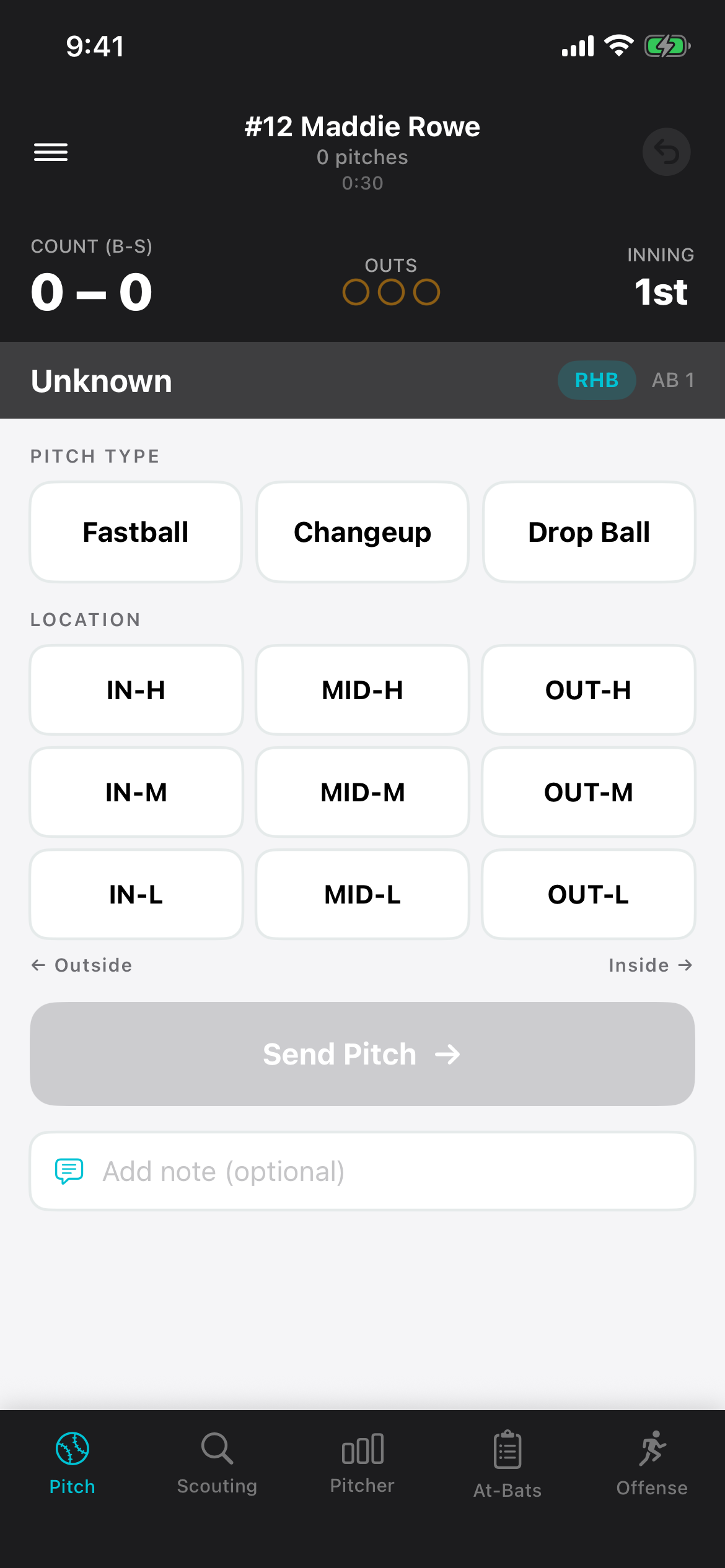
Know your tabs
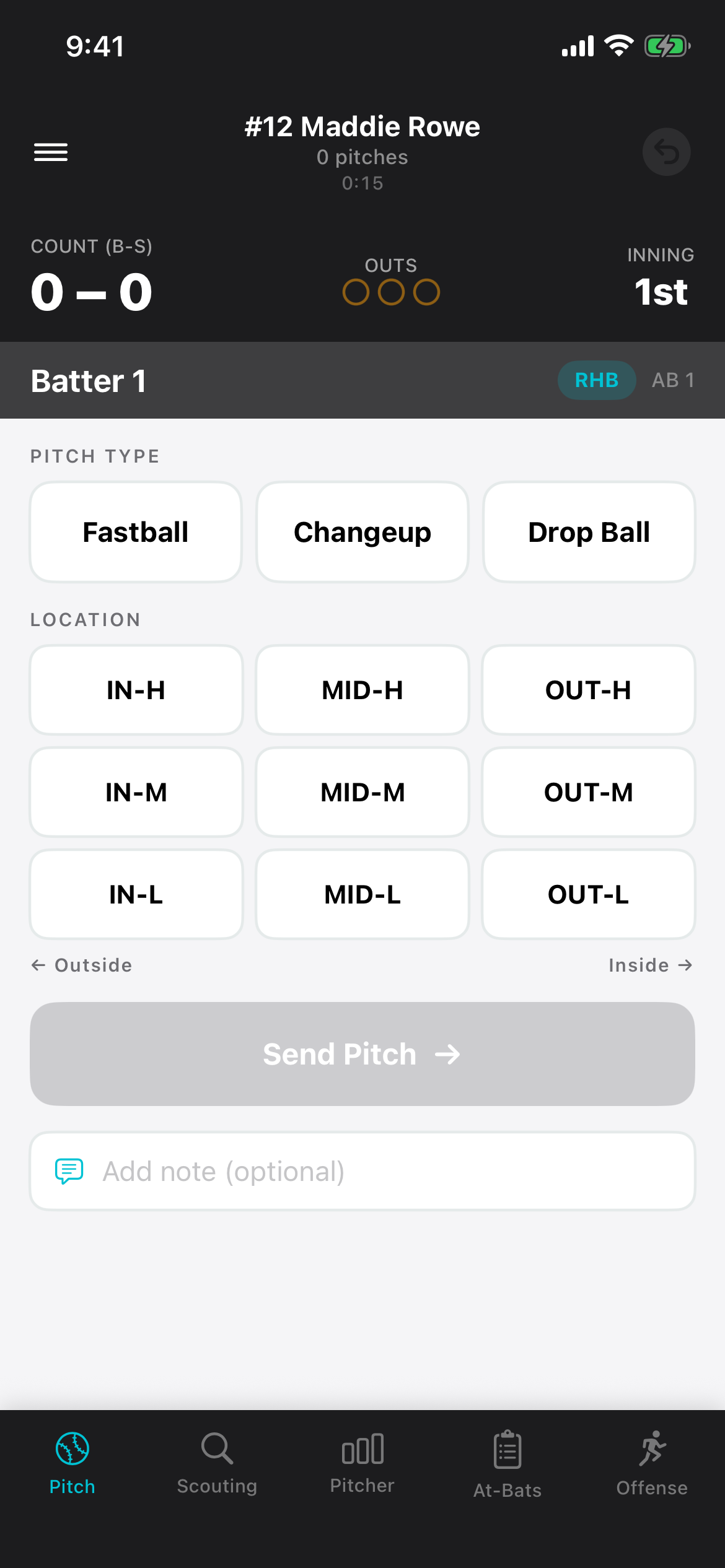
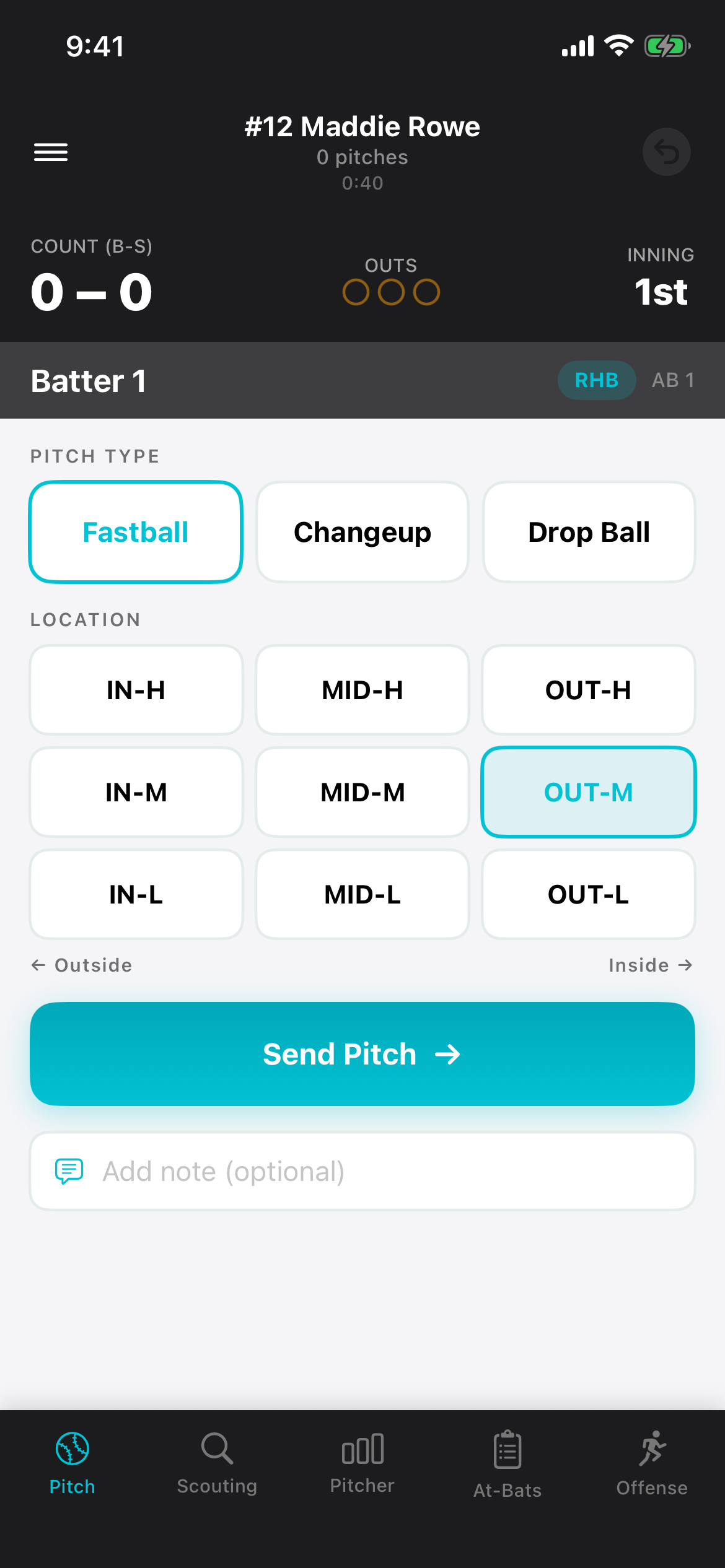
Pick the pitch, pick the spot, send it
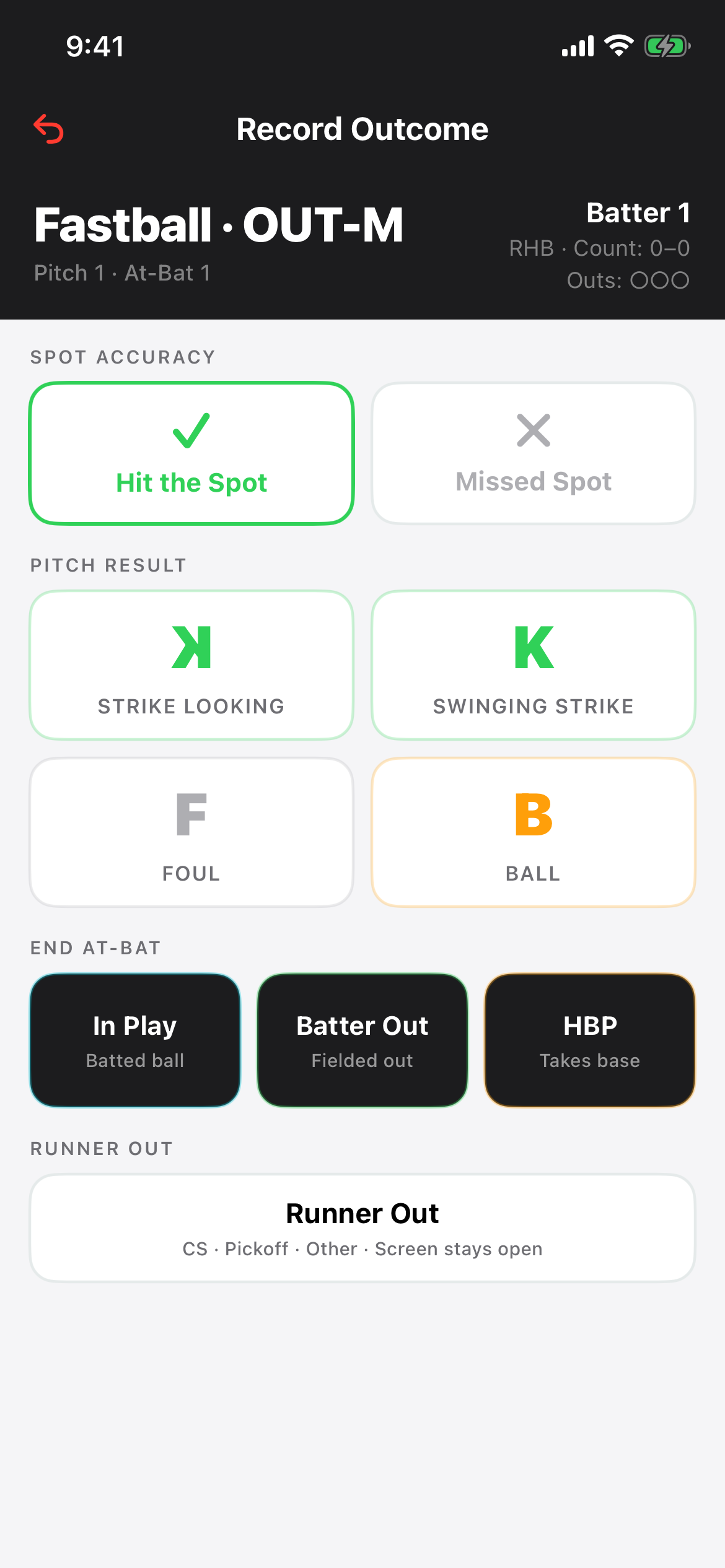
Record what happened
The screen leads with Spot Accuracy — did she hit the spot you called, or miss it? Then Pitch Result: Strike Looking, Swinging Strike, Foul, or Ball. If the at-bat ends there instead, use In Play, Batter Out, or HBP. There’s a separate Runner Out button for caught stealing and pickoffs, which leaves the screen open.
Don’t skip the spot question. It’s what separates what you called from what she threw, and it’s what makes the zone analytics worth anything later.
Mid-game adjustments
End the game
Part Three
Practice mode is free
Open the menu on the right and tap Practice. Pick a pitcher and a zone system, and start logging. No opponent, no lineup, no game clock.
You get pitch-type distribution and spot accuracy per zone, and a summary at the end with room for notes. It’s the same calling interface as a game, so a bullpen session doubles as a rehearsal. Included on every plan, free ones too.
Part Four
Setting up the Apple Watch
Install it from the Watch app
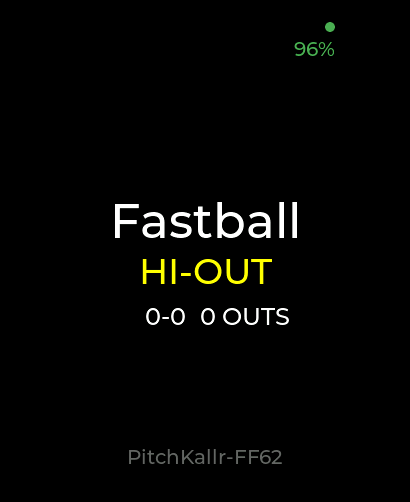
Open it before the game
Ending from the wrist
“Health Access Required”
The watch app will block with this message:
“PitchCaller needs Health permission to stay running on your wrist during games. Without it, watchOS will close the app after a few minutes.”
It’s not collecting health data. The app starts a workout session because that’s what tells watchOS to keep an app on screen instead of closing it after a couple of minutes.
Turn on Workouts for PitchKallr
On the watch: Settings → Health → App Access → PitchCaller → turn on Workouts.
Then return to the app. You may also see a Health permission prompt on the iPhone during setup — same reason, allow it.
Two more things to know
- “Session lost — tap to restart.” If this banner appears, tap it. The session restarts and no pitch data is lost.
- 30-minute idle timeout. A game with no activity for half an hour ends itself. Fine between innings; if a rain delay leaves you with a dark screen, just reopen the app.
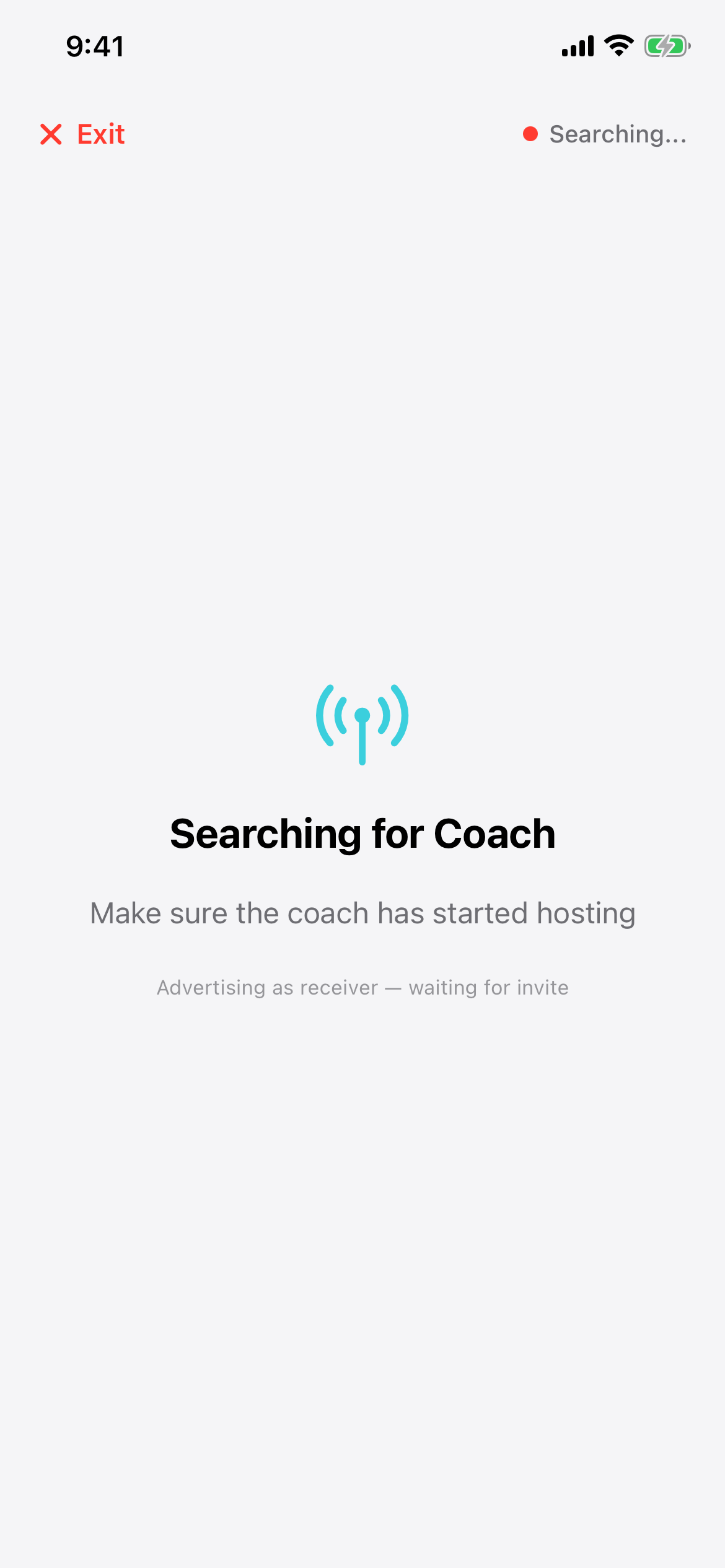
Want more than one watch? Your phone drives a single Apple Watch directly. To get the call onto a second, third, or fourth wrist, each of those players runs Receiver Mode on their own iPhone and it relays through to their own watch.
Prefer a purpose-built receiver over an Apple Watch? The dedicated PitchKallr Watch is available for pre-order — two watches and a carry case for $249.
Part Five
Getting the call on more than one watch
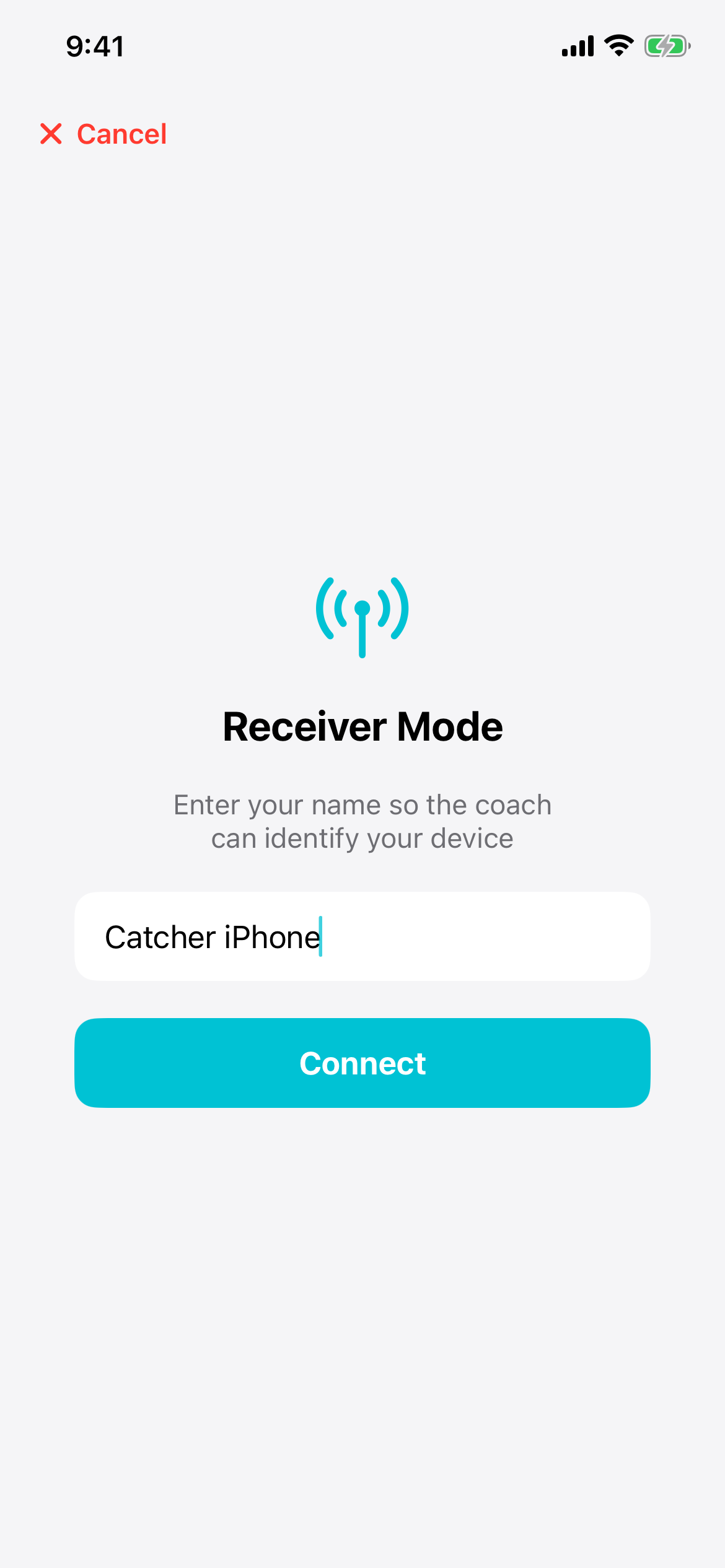
Tap Receiver Mode on the login screen
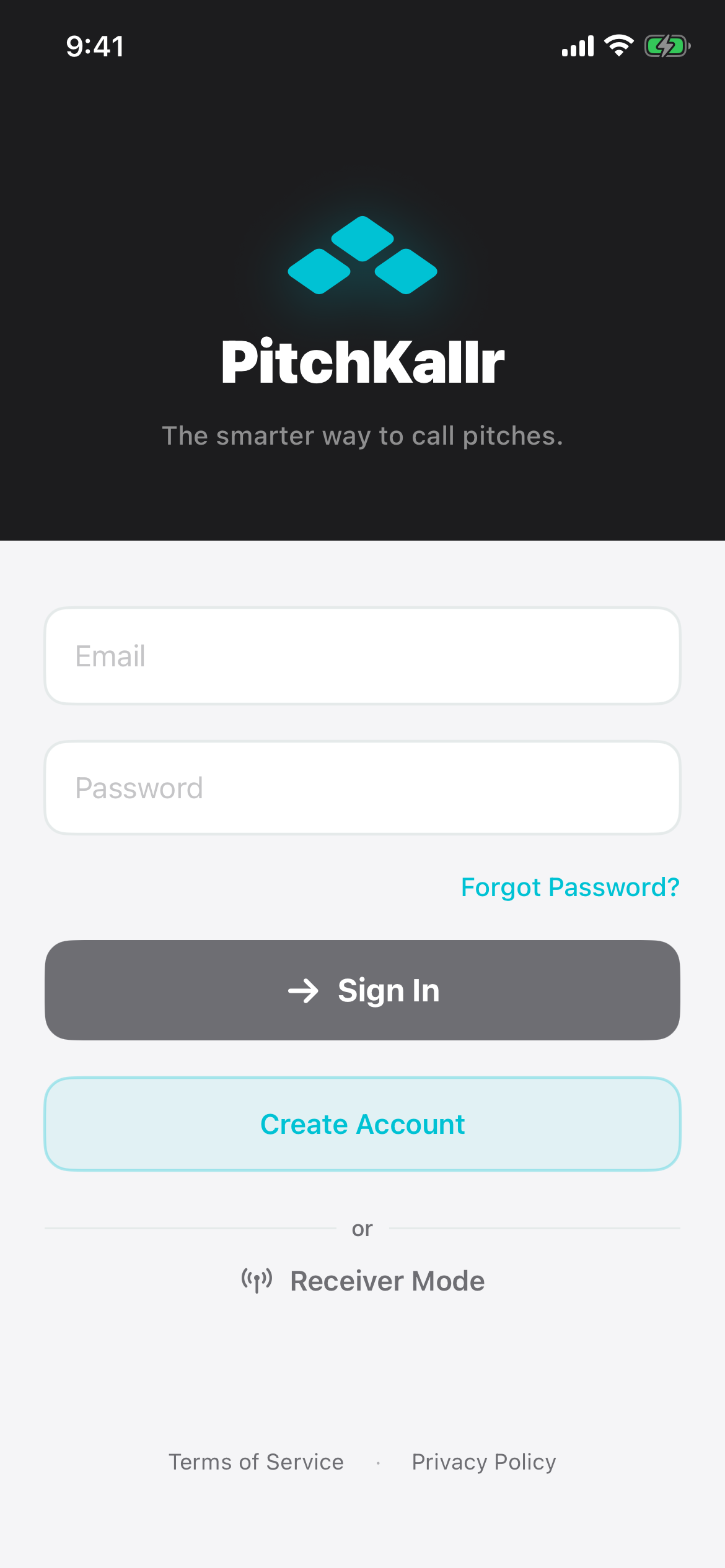
Name the device and connect
Start hosting on your phone
The call lands on their watch
Keep them in range
Part Six
What's in Free vs Pro
Feature
Free
Pro
Pitch calling to Apple Watch
Included
Included
Practice mode
Included
Included
Cloud backup
Included
Included
Game history & pitch counts
Included
Included
Teams
2
Unlimited
Pitchers per team
5
Unlimited
Devices on your account
1 at a time
Multiple
PDF game recaps
Monthly limit
Unlimited
Pitch recommendations
—
Included
Zone heatmaps & analytics
—
Included
Batter weakness insights
—
Included
Team invitations
—
Included
Pro includes a 14-day free trial and no card is required to start it. If you decide not to continue, you roll back to the free tier and keep all of your game data. Full pricing is on the pricing page.
Part Seven
Troubleshooting
The watch says “Health Access Required.”+−
The watch app closed itself in the middle of a game.+−
My catcher isn’t getting the call.+−
Only some of my players are getting the call.+−
My games or roster changes aren’t showing up.+−
I signed in on a second device and it’s read-only.+−
I can’t add a third team or a sixth pitcher.+−
The receiver phone can’t find me.+−
I never got the account confirmation email.+−
Can I use PitchKallr for baseball?+−
Is this legal in my league?+−
Still stuck?
Email us with your team name and what you were doing when it went wrong. A coach reads every one of these.
support@kenparsolutions.comAlso worth a look: FAQ · Rules by sanctioning body · How the engine thinks
Ready to call your first game?
Download PitchKallr, build your roster, and turn on Basic Mode. You can be calling pitches in the time it takes to finish infield.